How to Pick a 4K Space Wallpaper for a Phone
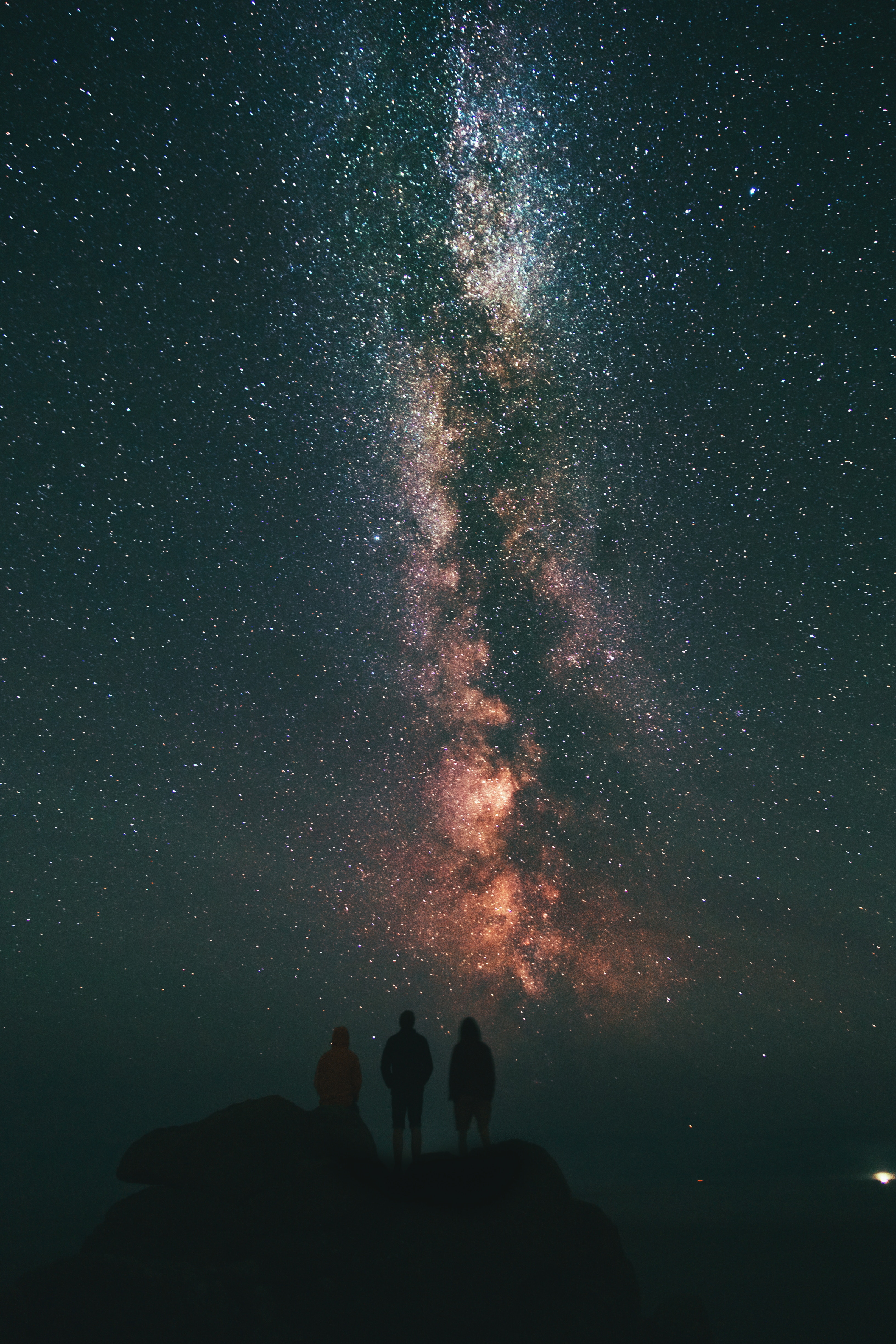
Pick a space image that remains sharp after a tall crop and leaves room for the lock-screen clock. Explain why a high-resolution source, dark detail and restrained bright areas matter more than a 4K label.
The PracandyWalls Team2 min read
In this guide
Resolution versus Crop
Choosing a 4k space wallpaper for phone requires balancing source resolution against the aspect ratio of your display. A high-resolution source ensures that the image remains sharp even after Android crops it to fit your specific screen dimensions.
Most phones have tall, narrow screens. When you set a wide landscape image as a wallpaper, the system fits the image height to the screen height. This action typically crops the left and right edges of the original image. If your chosen nebula or planet is positioned near the edge, it may be cut off. Centering the subject helps, but you must account for the loss of peripheral detail. A 4K source provides enough extra pixels to maintain clarity in the remaining visible area, whereas a lower-resolution image may appear pixelated once scaled up.
Darkness and Screen Technology
Space imagery is naturally dark, which suits OLED and AMOLED displays well. These screens turn off individual pixels to create true black, saving battery life and enhancing contrast. However, the display technology affects how bright areas are rendered. On backlit LCD or mini-LED screens, bright white stars can cause blooming, a halo effect where light leaks into surrounding dark areas. This reduces the perceived sharpness of the image. On OLED and AMOLED panels, pixels emit their own light, so this specific type of blooming does not occur. Regardless of panel type, restrained bright areas help maintain detail in the darker regions of the space scene.
Lock Screen Layout
The lock screen displays the time, date, and notifications. These elements are usually positioned in the upper third of the screen. If your space wallpaper has high-detail features, such as a bright star cluster or a planetary ring, in this zone, the text may become difficult to read. Android does not automatically blur or darken the wallpaper behind the clock. You must select an image where the upper portion is relatively uncluttered. This ensures that the system text remains legible without relying on system-level adjustments that the app does not control.
Previewing the Result
PracandyWalls allows you to browse and preview wallpapers at full resolution before setting them. This preview shows the source image clearly, letting you check for compression artifacts or excessive brightness. It is important to note that the preview shows the original file, not the exact final crop that Android will apply. Device-specific cropping can vary slightly depending on the manufacturer and screen shape. To get the best result, select an image with a safe margin around the subject. After setting the wallpaper, check the home screen and lock screen to ensure the composition works in both contexts. You can set the wallpaper for the home screen, lock screen, or both, a choice managed by Android itself. For a curated selection of high-resolution space imagery, download the free PracandyWalls Android app here.


