True-black and near-black wallpapers that make an AMOLED screen look its best, what separates a good AMOLED wallpaper from a merely dark one, and how to set one without losing detail.
Wallpapers via Wallhaven. Tap one to open it full size with its original source.
What defines a true AMOLED wallpaper
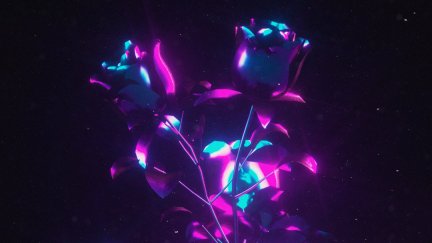
The best AMOLED wallpapers for Android phones utilize deep, uniform black fields to exploit the pixel-level power cutoff of organic light-emitting diodes. This specific hardware characteristic means that black pixels emit no light at all, creating an infinite contrast ratio that LCD screens cannot replicate. A merely dark wallpaper often contains compressed shadows or grey noise that remains visible even on OLED panels, whereas a true AMOLED-optimized image uses pure black (#000000) to make the display appear boundless. The wallpapers above demonstrate this distinction, showing how the absence of backlight bleed allows the screen edges to fade into the physical bezel. When a pixel is off, it is truly off, which is why the visual impact of a high-contrast image on an AMOLED panel feels physically deeper than on a backlit LCD. This effect is not a software trick or a filter; it is a direct result of the display technology. Understanding this mechanical reality is the first step in selecting an image that actually improves the viewing experience rather than just darkening it.
Contrast and detail preservation
High resolution is essential for maintaining sharpness on modern high-density screens. A 4K wallpaper ensures that individual pixels are not visible when the image is set to fit the screen, preventing the soft look that occurs when a lower-resolution image is stretched. However, resolution alone does not guarantee quality. The key metric is local contrast. If an image has large areas of near-black that are not actually black, the panel will struggle to distinguish them from the true black background. This results in a hazy appearance where the subject seems to float in a fog rather than sitting in a void. To preserve detail, the subject of the wallpaper should be bright and well-defined against the dark background. Avoid images with heavy grain or noise in the shadow areas, as these artifacts become more pronounced on OLED panels because there is no backlight to wash them out. The goal is clarity. If you cannot see the difference between the darkest part of the image and the screen edge, the image is not optimized for this display type.
Setting the wallpaper without loss
Android re-encodes and crops a wallpaper when it is set, which is why the result can look softer than the preview. This processing step is handled by the operating system, not the wallpaper app. When you select an image, the system may compress it to save memory and crop it to match the aspect ratio of your specific device. This can introduce a slight loss in sharpness, particularly in fine details. To mitigate this, ensure the original image has a high pixel density. If the image is significantly larger than your screen resolution, the cropping may remove important parts of the composition. It is best to choose images where the main subject is centered or positioned according to the safe zones of your specific phone model. The choice between setting the wallpaper for the home screen, lock screen, or both is made within the Android system settings, not within the app itself. The app displays the image at full resolution so you can see exactly how it will look before you commit to setting it, allowing you to verify that the contrast and detail remain intact after the system’s processing.
Choosing the right tool
PracandyWalls is an Android app that allows you to browse, preview at full resolution, and set wallpapers. It does not edit images, generate them, or alter system settings such as refresh rate or battery behavior. The preview function is critical for AMOLED users because it shows the image at its native resolution without the compression artifacts that occur during the setting process. This allows you to judge the true black levels and detail retention before the operating system applies its own processing. Since the app is designed specifically for Android, it integrates directly with the system’s wallpaper setting functions. You can select the home screen, lock screen, or both, and the app will pass the image to the system for final encoding. This workflow ensures that you are making an informed decision based on the actual visual quality of the image on your specific hardware. By previewing at full resolution, you avoid the common issue of setting a wallpaper only to find that the contrast has been crushed or the details have been lost in the system’s re-encoding step.